

Since version 2.2 the permission can be defined for each asset.
Like Unix file permissions, the three permission flags control an element's permissions:
-
see (read)
-
edit (write)
-
use (execute)
Examples
-
111 → full permissions (see, edit, use)
-
000 → no permissions (can't see, can't edit, can't use)
-
101 → see, can't edit, use
-
100 → see, can't edit, can't use
|
Value |
Description |
|---|---|
|
000 |
No permissions |
|
001 |
Use permission |
|
010 |
Edit permission |
|
011 |
Edit & use permissions |
|
100 |
See permission |
|
101 |
See & use permissions |
|
110 |
See & edit permissions |
|
111 |
Full permissions |
In Gallery View, icons indicate an element's permission unless the permission is “can’t see,” which hides the element in the lite and restricted standard version.
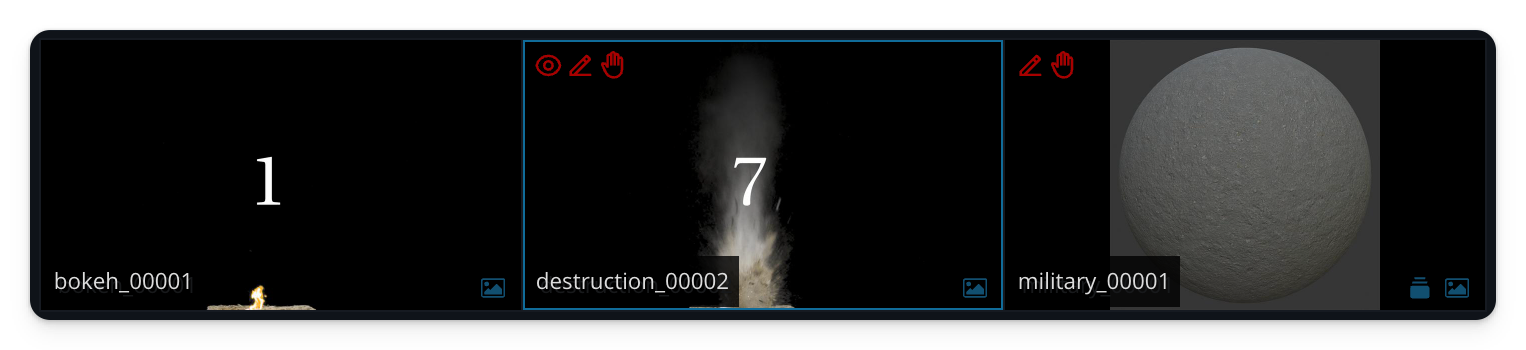
Edit permission
Setting / changing permissions can be done during ingest or afterwards in the Gallery View (edit mode).
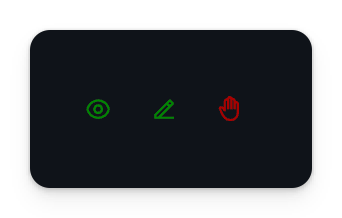
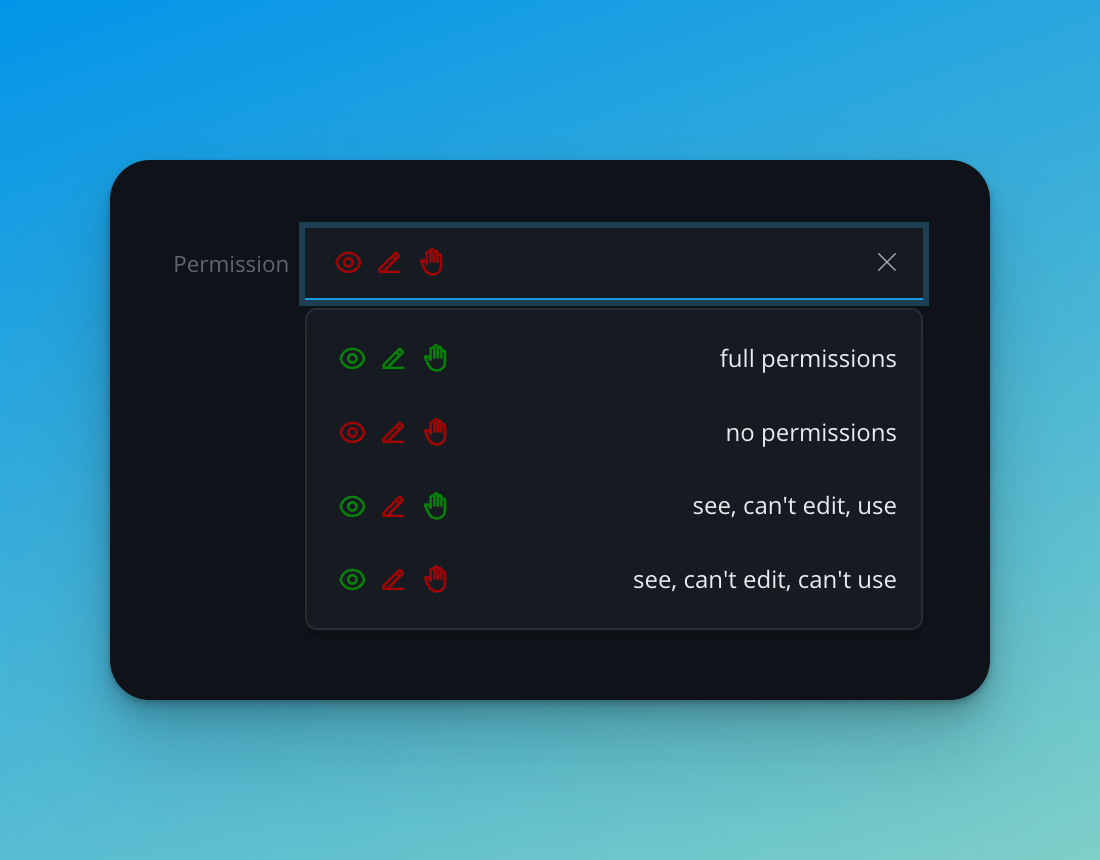
Permission edit level
Depending on the software type, users may or may not change different permissions.
Standard version
-
“admin” can always change the element permissions
-
"admin" can always use, see and edit
Restricted standard version
For advanced artists who ingest, but can't control the settings:
-
advanced artists can see, edit and use
-
advanced artists can see, use, but not edit
-
advanced artists can see, but not use, not edit
-
advanced artists can't see
Activate restricted standard version by setting the environment variable: DASELEMENT_SETTINGS_RESTRICTED
Lite version (for artists)
-
artist can see and use
-
artist can see but not use
-
artist can't see
Control permission via Python hook
If more customization is required a Python hook can be used to dynamically control which elements will show up in the user interface.
Link to example hook:
This lets you control permissions and set restrictions like these:
-
Unrestricted (means all studios, all shows, all users can use the data),
-
Show Restricted (limited to the specific show),
-
Series Restricted (limited to the series: e.g.: project ABC's assets),
-
Client Restricted (limited to the clients, e.g.: client A, client B),
-
Studio Restricted (limited to the facility: Munich, Berlin, …),
-
Other Restrictions (anything else)