


The Ingest View lets you add new elements to a library. Each element requires at least a category. You can also define custom tags, metadata (key-value), and assign additional files to elements.
Media Type
The media type determines which proxies are generated and which preview player the gallery uses.
By default, the media type depends on the file extension.
|
Media Type |
Description |
|---|---|
|
|
3D materials like MaterialX or Substance Painter materials |
|
|
Typical 3D model formats: Alembic, FBX, OBJ |
|
|
DCC specific file extension: Houdini, Maya, Blender |
|
|
Folder containing files and subfolders |
|
|
Single image files: EXR, JPG, photo camera raw data |
|
|
Movie files: MOV, MP4 |
|
|
PDF files |
|
|
Project file: Nuke, After Effects |
|
|
File sequences of sequentially numbered files |
|
|
File sequence following a UDIM (Universal Texture Coordinate) naming |
|
|
360° images or movie, aka. HDRs |
|
|
Any custom file extension defined by the user |
For the full list see: Settings → Global Settings → Valid file formats

In some cases, this must change, for example, if the element content is a 360° HDR image but is an .exr file. The default media type for an .exr is image, but for the HDR image, it makes more sense to use the media type sphere to enable the HDR viewer in the gallery view.
Here are some pointers on ingesting assets into the library.
A good practice is to ingest batches of 30-50 similar assets at a time, e.g. one folder at at time. This approach helps control tags efficiently and detect conflicts early.
Automate ingest with hook file
Use the pre ingest load Python hook to automatically populate fields like category, tags and metadata for a new element. This method lets you extract keywords from file paths and assign them as tags.
Example file: https://github.com/das-element/resources/blob/main/scripts/hooks/examples/ingest/pre_ingest_load.py
Automate ingest with command line tool and Python API
To batch import lots of elements it can be useful to use the command line tool (CLI) or the Python API, which is a wrapper around the CLI tool.
Find more information about the Python API here: http://docu.api.das-element.com
As well as an example Python script to ingest elements:
https://github.com/das-element/python-api/blob/main/examples/ingest_new_element.py
Folder as element
Managing a complex asset with multiple files and sub-folders? Ingest the entire folder as a single element to handle even the most intricate assets efficiently.
In the Ingest View activate "Load as folder" to load the entire folder as a single element instead of individual files. This is the simplest way to ingest complex assets. You can also define custom previews. The media type is “folder,” which dynamically searches for files on disk each time you select the element.


Ingest failed?
Use the ingest logs to restore a previous ingest list state quickly. This is useful if the ingest failed or to save the current list state for later reuse. Learn more about ingest logs here.
Ingest list
Use the load files/folders button or drag and drop files and folders into the ingest list. Each item in the list becomes one element in the library.

Tags
Some path values can be used as tags. They are replaced by the actual value during ingest. For example, <category.name> adds the category name as a tag and <source.basename> adds the source file name.
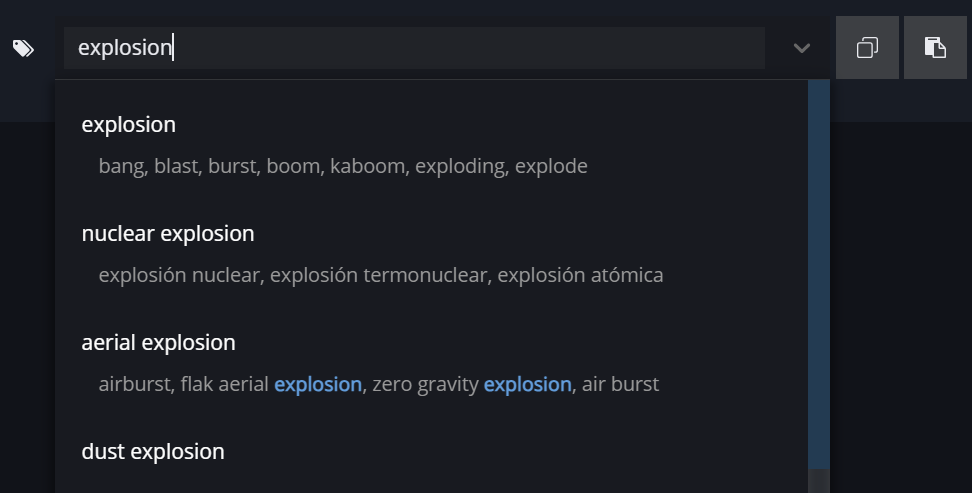
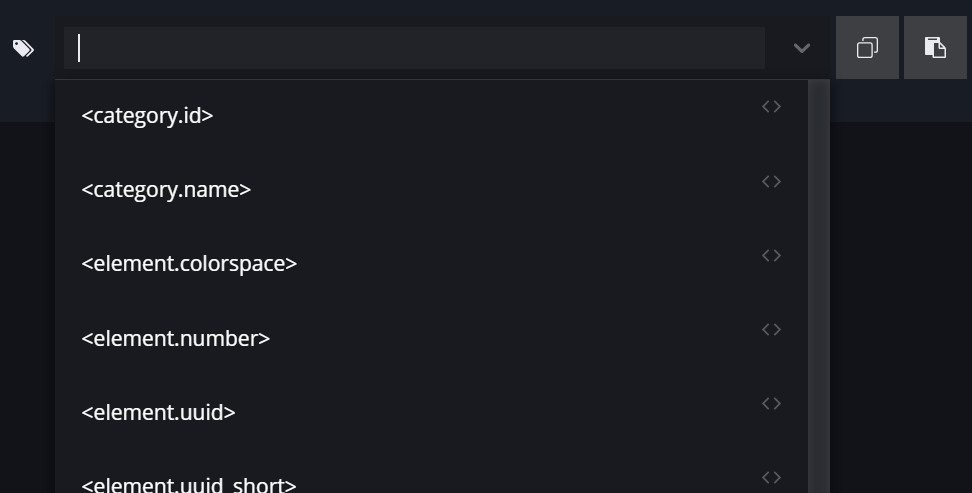
Metadata
Add custom metadata to an element as simple key-value pairs, for example details about the captured data, license information, or where an archived asset came from. You can also use metadata in your naming convention, for example <metadata.some_key>. Learn more in Metadata as Path Values.
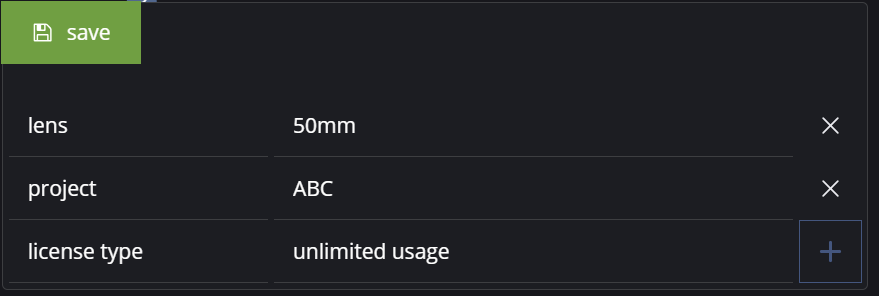
This does not change the metadata of the files on disk. The metadata is saved in the library database and can be searched in the Gallery View.
Filter
Filter the list by text in the file paths or the assigned tags. The filter also accepts regular expressions, for example Explosion_.*_\dk matches Explosion_something_2k.mov. Separate several terms with commas to search the tags, for example fire,flame,something.
Use the status filter bar at the bottom left to show only items with a certain status, for example image sequences with missing frames. To clear a status filter, click the active filter (green border) or the cross (x) on the right.

Load options
-
Create temp preview: creates temporary previews so you can see the elements before you ingest them. These are not the proxies used in the Gallery View. Turn it off to load elements faster.
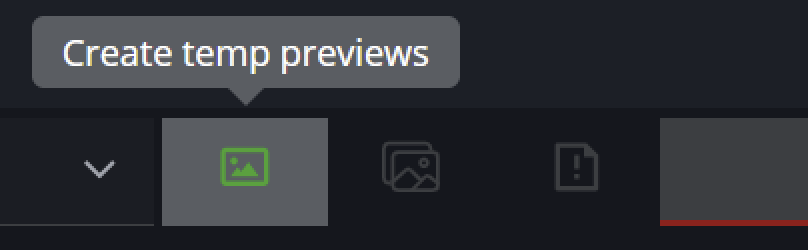
Deactivate “Create temp preview” to load elements faster -
Load file sequences: by default, sequentially named files are loaded as one file sequence. Turn it off if the files are individual frames, for example img_0001.jpg, img_0002.jpg. To split a single sequence, click "Split sequence to single items".
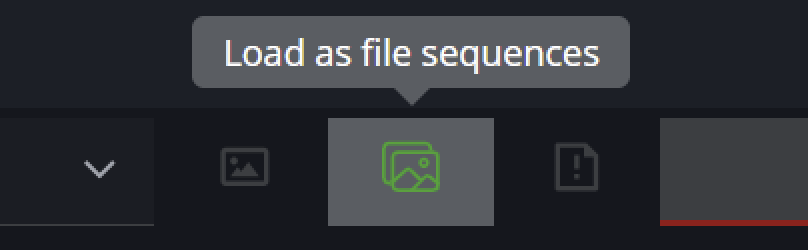
Deactivate “Load file sequences” to load each item as a single item 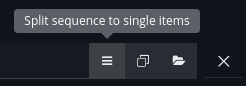
Split a sequence into single files by clicking “Split sequence to single items” -
Check for visual duplicates: compares the visual content with the loaded libraries and marks items that already exist. This can take a while with large libraries, so turn it off to load faster.
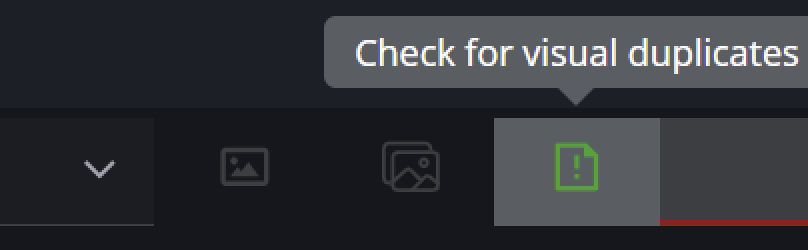
Enable “Check for visual duplicates” to find duplicates -
Load as folder: loads the whole folder as one element instead of individual files. The file sequence option no longer applies. See Folder as element.
Ingest logs
Each time you click "ingest elements", a log file (CSV) is saved to disk. Use it to restore the ingest list at any time, with all file paths, categories and tags.
Example:
library_root_folder/.config/ingest_logs/das-element_ingest_2022-02-13_17-42-37.csv
path;category;tags
/mnt/server/some/folder/files.1-120#.exr;Q327954;Q327954,fire,custom tags
/mnt/server/some/other-folder/other-files.mov;Q327954;Q327954,fire,something,foo,bar
These CSV files are useful to batch import new elements with predefined tags and categories.
Save ingest list
-
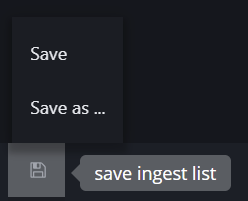
Save: saves the ingest log to the default location
library_root_folder/.config/ingest_logs -
Save as …: choose a custom location
Restore ingest list
To restore an ingest list, click the "load list" folder icon in the bottom left corner of the ingest list.