
Video Viewer
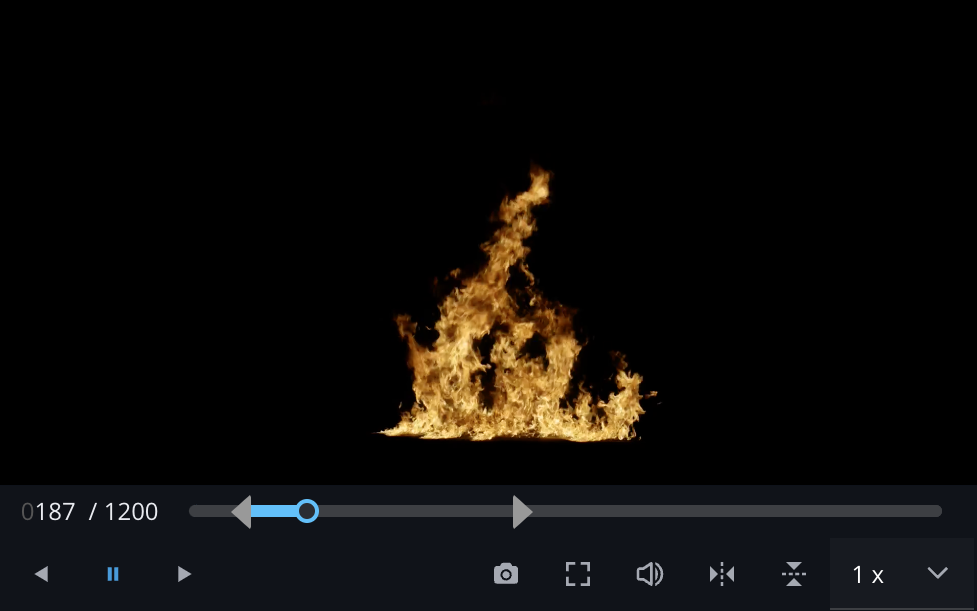
The video player provides several features for review and playback:
-
click & drag in the timeline to scrub video
-
-
use the arrow handles to set the playback range
-
flipped and/or flopped video preview
-
adjust the playback speed as needed
|
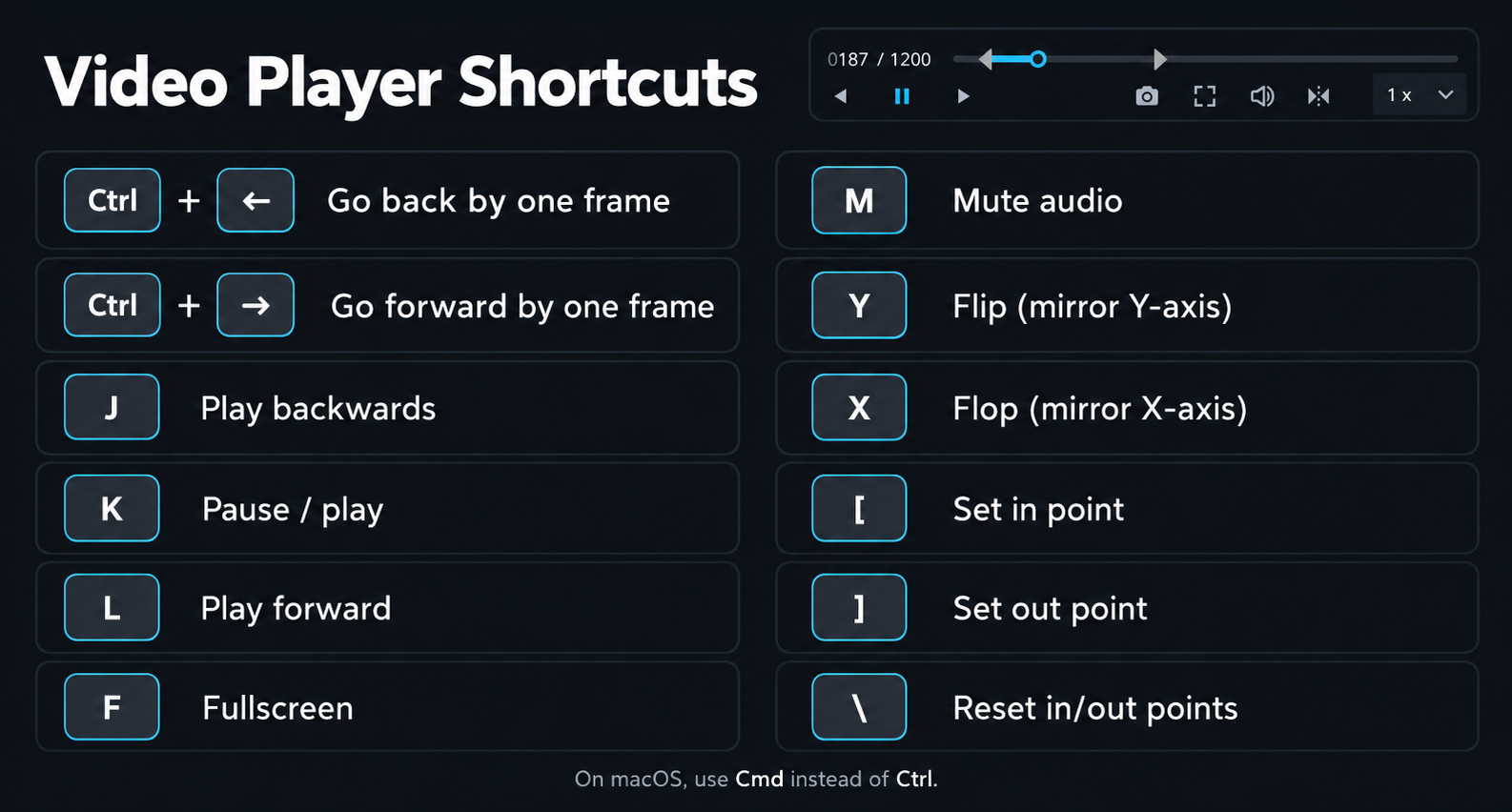
Shortcuts |
|
Shortcuts |
|
|---|---|---|---|
|
Ctrl + ← |
Go back by one frame |
m |
Mute audio |
|
Ctrl + → |
Go forward by one frame |
y |
Flip (mirror Y-axis) |
|
j |
Play backwards |
x |
Flop (mirror X-axis) |
|
k |
Pause / play |
[ |
Set in point |
|
l |
Play forward |
] |
Set out point |
|
f |
Fullscreen |
\ |
Reset in/out points |
On macOS, use Cmd instead of Ctrl
Sphere Viewer
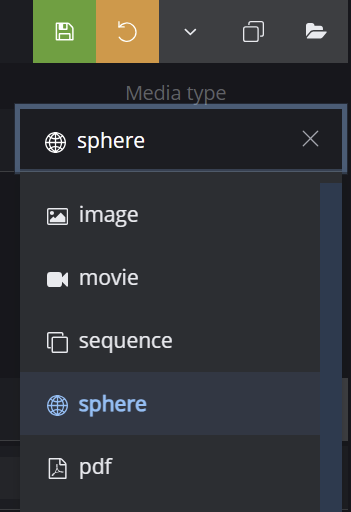
To display an element in the Sphere Viewer the media type needs to be set to: sphere
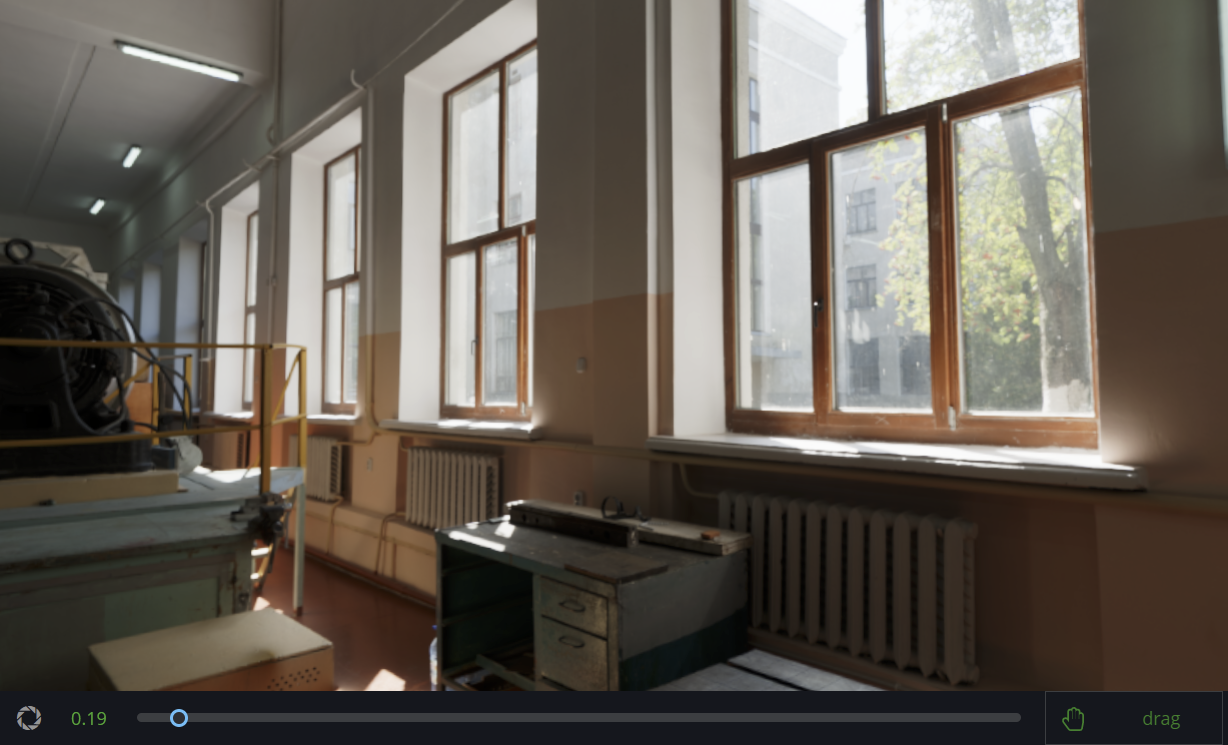
Images and videos can be viewer in a lat-long view (latitude/longitude).
Added exposure slider. Click text (left) or exposure icon to reset to 1
Green text indicates that the exposure value has been modified.
The element main will be used to display in the viewer. Works for panoramic images and videos.
ToDo:
-
video controls for videos not started
Please note that tiled EXRs are not supported, make sure to use scanline EXRs.
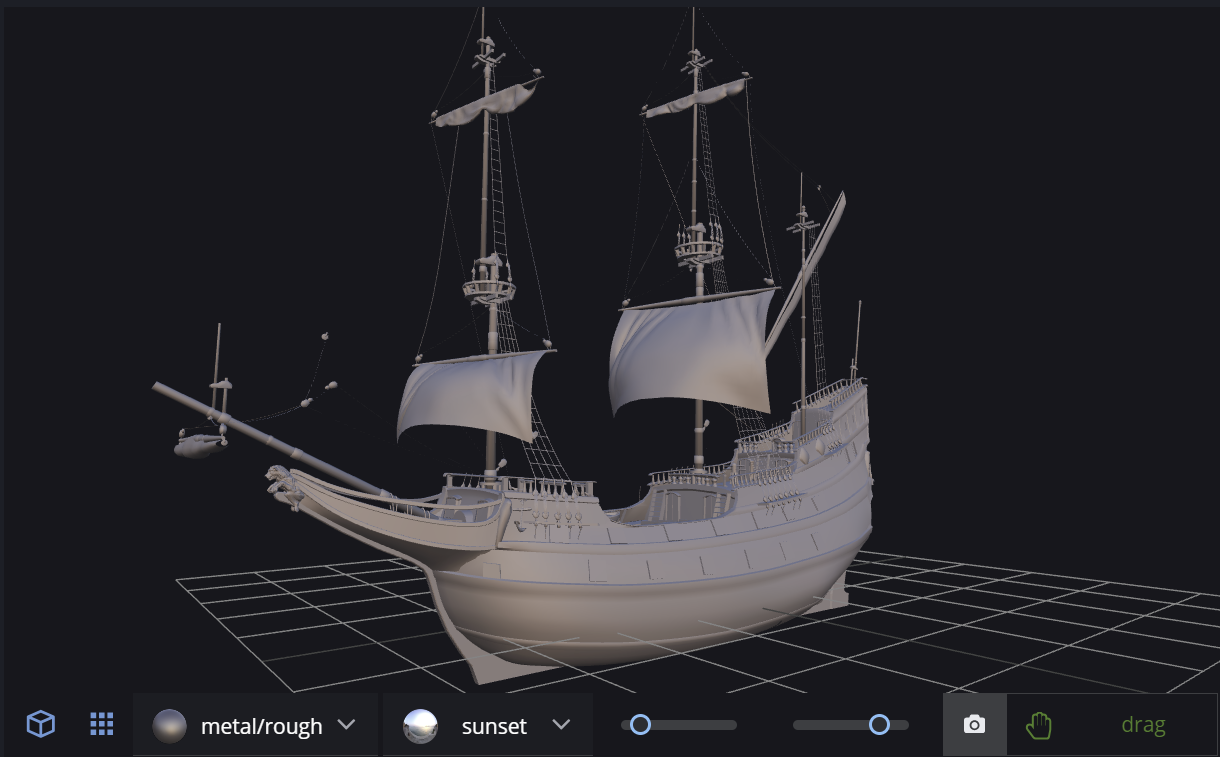
3D viewer
A 3D viewer has been added to display low-resolution (aka. game-ready) 3D models.
For more information check out the page: 3D Assets

Toggle between 3D viewer and a 2D display of the elements thumbnail.

The grid can be dis/enabled by the icon in the bottom left corner.
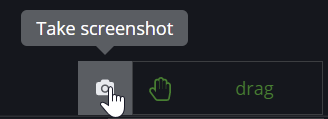
Take a screenshot of the current viewport, to set a new element thumbnail.
Click the screenshot button in the bottom right corner of the 3D viewer.
Display Options
There are three display options for the 3D viewer:
-
textured -
metalness-roughness -
wireframe
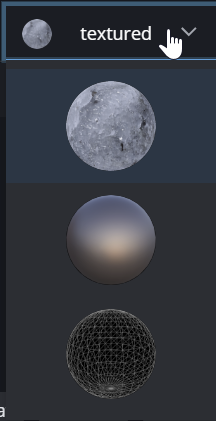
metalness - roughness
If the display is set to metalness-roughness you can use the two sliders to control the metalness and roughness of the load 3D model in the viewport.

HDR
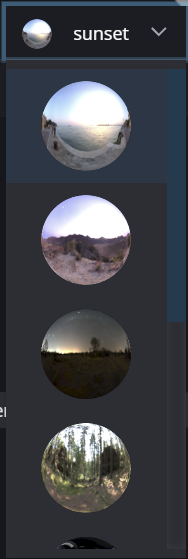
The preview HDR can be changed for the modes: textured and metalness-roughness